CustomTkinter Tutorial Build Beautiful Desktop Apps with Python Easily
Building desktop applications with Python has always been popular among developers because of its simplicity and flexibility. However, traditional GUI libraries like Tkinter often feel outdated in design and limited in customization. This is where CustomTkinter comes in as a modern solution.
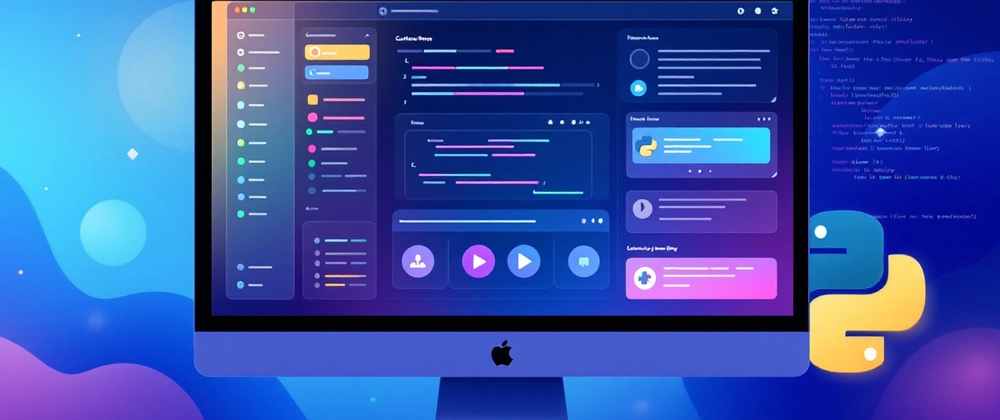
CustomTkinter is an enhanced version of Tkinter that allows developers to create modern, clean, and visually appealing desktop applications without needing advanced UI/UX design skills. It keeps the simplicity of Tkinter while adding a fresh, modern design system similar to today’s mobile and web applications.
What is CustomTkinter
CustomTkinter is a Python library built on top of Tkinter. It provides modern UI components such as:
- Modern buttons
- Stylish entry fields
- Advanced frames and layouts
- Dark and light themes
- Responsive design elements
Unlike standard Tkinter widgets, CustomTkinter components are designed with modern user interface principles, making your applications look professional and visually attractive.
It is widely used for:
- Desktop software
- Admin dashboards
- Data entry tools
Why Use CustomTkinter?
Many developers prefer CustomTkinter because it solves common problems found in traditional Tkinter.
1. Modern Look and Feel
Tkinter applications often look outdated. CustomTkinter gives your app a clean, modern interface similar to Flutter or React-based UI designs.
2. Easy to Learn
If you already know basic Tkinter, learning CustomTkinter is extremely easy because it uses similar syntax.
3. Dark and Light Mode Support
Modern users expect theme switching. CustomTkinter provides built-in support for:
- Dark mode
- Light mode
- System-based themes
4. Highly Customizable
You can adjust:
- Colors
- Shapes
- Sizes
- Hover effects
- Fonts
5. Lightweight and Fast
Even though it looks modern, it remains lightweight and runs smoothly on most systems.
Installing CustomTkinter
Before starting development, you need to install the library.
Step 1: Install using pip
Open your terminal or command prompt and run:
pip install customtkinterStep 2: Verify Installation
You can test it with:
import customtkinter
print("CustomTkinter installed successfully!")
If no error appears, you are ready to build applications.
Creating Your First CustomTkinter App
Let’s start by creating a simple window.
Basic Window Example
import customtkinter as ctk

# Set appearance mode
ctk.set_appearance_mode("dark")

# Set default color theme
ctk.set_default_color_theme("blue")

# Create main window
app = ctk.CTk()
app.title("My First CustomTkinter App")
app.geometry("500x400")

# Run application
app.mainloop()
Explanation
CTk()creates the main windowset_appearance_mode()sets dark or light modegeometry()defines window sizemainloop()keeps the app running
This is your first modern Python desktop app.
Adding Labels in CustomTkinter
Labels are used to display text.
label = ctk.CTkLabel(app, text="Welcome to CustomTkinter!")
label.pack(pady=20)
Key Points
CTkLabelis used instead of Tkinter Labelpack()positions the widgetpadyadds vertical spacing
You can also customize font and color:
label = ctk.CTkLabel(
    app,
    text="Modern Python GUI",
    font=("Arial", 20)
)
label.pack(pady=20)
Creating Buttons in CustomTkinter
Buttons are essential for interaction.
def click_button():
    print("Button clicked!")

button = ctk.CTkButton(app, text="Click Me", command=click_button)
button.pack(pady=20)
Explanation
commanddefines what happens when the button is clicked- Functions handle user interaction
You can also customize buttons:
button = ctk.CTkButton(
    app,
    text="Submit",
    fg_color="green",
    hover_color="darkgreen"
)
button.pack(pady=20)
Entry Fields (User Input)
Entry fields allow users to input text.
entry = ctk.CTkEntry(app, placeholder_text="Enter your name")
entry.pack(pady=20)
Getting Input Value
def show_name():
    print(entry.get())

button = ctk.CTkButton(app, text="Show Name", command=show_name)
button.pack(pady=10)
Frames for Better Layout
Frames help organize widgets.
frame = ctk.CTkFrame(app)
frame.pack(pady=20, padx=20, fill="both", expand=True)

label = ctk.CTkLabel(frame, text="Inside Frame")
label.pack(pady=10)
Why Frames Matter
They help:
- Structure your UI
- Group related elements
- Improve design clarity
Working with Themes
CustomTkinter allows easy theme switching.
Light Mode
ctk.set_appearance_mode("light")Dark Mode
ctk.set_appearance_mode("dark")System Mode
ctk.set_appearance_mode("system")System mode automatically matches your operating system settings.
Building a Simple Login Form
Let’s combine everything into a small project.
import customtkinter as ctk

ctk.set_appearance_mode("dark")
ctk.set_default_color_theme("blue")

app = ctk.CTk()
app.geometry("400x300")
app.title("Login Form")

# Username
username_entry = ctk.CTkEntry(app, placeholder_text="Username")
username_entry.pack(pady=10)

# Password
password_entry = ctk.CTkEntry(app, placeholder_text="Password", show="*")
password_entry.pack(pady=10)

# Login function
def login():
    username = username_entry.get()
    password = password_entry.get()
    print("Username:", username)
    print("Password:", password)

# Button
login_button = ctk.CTkButton(app, text="Login", command=login)
login_button.pack(pady=20)

app.mainloop()
This simple app demonstrates:
- Input fields
- Button handling
- Basic layout
- User interaction
CustomTkinter vs Tkinter
| Feature | Tkinter | CustomTkinter |
|---|---|---|
| Design | Old-style | Modern UI |
| Themes | Limited | Dark/Light/System |
| Customization | Low | High |
| Ease of use | Easy | Easy |
| Appearance | Basic | Professional |
CustomTkinter clearly wins when it comes to modern UI design.
Best Practices for CustomTkinter Development
To build professional applications, follow these tips:
1. Use Consistent Themes
Stick to one color theme throughout your application.
2. Organize with Frames
Avoid placing all widgets directly on the main window.
3. Keep UI Simple
Modern design prefers minimalism.
4. Use Proper Spacing
Padding improves readability and user experience.
5. Use Functions for Logic
Never mix UI code with business logic.
Common Use Cases
CustomTkinter is used in many real-world applications such as:
- School management systems
- Inventory management tools
- Data visualization dashboards
- Personal productivity apps
- Admin panels for small businesses
Its simplicity makes it ideal for both beginners and professionals.
Advantages of CustomTkinter
CustomTkinter offers several benefits:
- Easy to learn for beginners
- Clean and modern UI design
- Fast development cycle
- Cross-platform support
- Active community support
These advantages make it a strong choice for Python GUI development.
Limitations
Although powerful, it has some limitations:
- Not suitable for very large enterprise applications
- Limited compared to frameworks like Qt
- Requires manual design for complex layouts
Still, for most small and medium projects, it is more than enough.
Conclusion
CustomTkinter is a powerful and modern solution for building desktop applications using Python. It enhances the traditional Tkinter library by adding stylish UI components, theme support, and better customization options.