
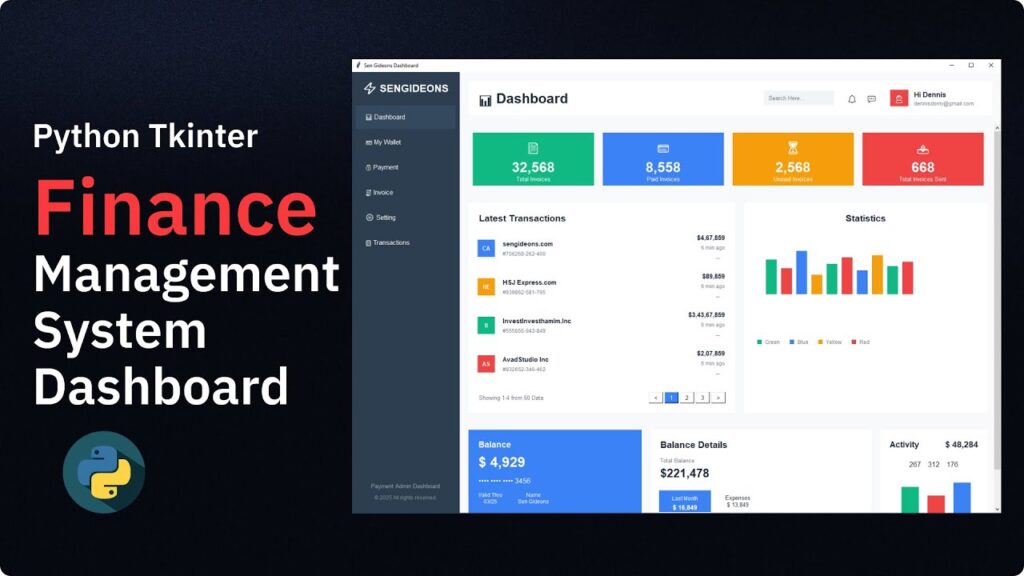
Creating desktop applications in Python has always been popular, but in recent years developers have started expecting more modern and visually appealing interfaces. Traditional Tkinter, while powerful and built into Python, often looks outdated and requires extra effort to make apps look professional. This is where CustomTkinter comes in. It is a modern extension of Tkinter that allows developers to build beautiful, responsive, and dark-mode friendly GUI applications with much less effort.
In this tutorial, we will explore CustomTkinter from the ground up. You will learn what it is, why it is used, how to install it, and how to build real-world GUI applications using its modern widgets. By the end, you will be able to create professional-looking Python desktop apps with ease.
Introduction to CustomTkinter
CustomTkinter is a Python library built on top of Tkinter. It enhances the default Tkinter widgets by giving them a modern design, better styling options, and built-in support for themes such as dark mode and light mode.
Tkinter itself is reliable and widely used, but its design is old-fashioned. CustomTkinter solves this problem by replacing standard widgets like buttons, labels, and entry fields with modern versions that look similar to contemporary applications .One of the most powerful features of CustomTkinter is that it does not require learning a completely new framework. If you already know Tkinter, you can easily switch to CustomTkinter without much difficulty.
Why Choose CustomTkinter for GUI Development
Modern applications require more than just functionality; they need good design and user experience. CustomTkinter helps bridge the gap between functionality and design .It allows developers to quickly build applications that look clean and professional without needing external design tools or complex CSS-like styling systems. It is especially useful for beginners who want to focus on Python logic instead of spending too much time on UI design.
Another major advantage is its built-in theme support. You can switch between dark mode and light mode with just a few lines of code. This makes it ideal for modern applications where theme customization is expected .CustomTkinter is also lightweight, meaning it does not slow down your application. Since it is built on Tkinter, it maintains stability while improving appearance.
Installing CustomTkinter in Python
Before you start building applications, you need to install the library. The installation process is very simple and can be done using pip.nce Python is installed on your system, open your terminal or command prompt and install CustomTkinter. After installation, you can import it directly into your Python scripts and start building applications immediately.After installing, it is always a good practice to test whether the installation was successful by creating a simple window. If the window appears without errors, your setup is ready.
Creating Your First CustomTkinter Window
Every GUI application starts with a window. In CustomTkinter, creating a window is straightforward. You initialize the main application window and set its size, title, and appearance mode.When you run your first program, you will notice that the window already looks modern compared to standard Tkinter. It has smoother edges, better spacing, and a more polished design.
You can also control the appearance mode of your application. For example, you can set it to dark mode, light mode, or system mode, which automatically matches the operating system theme.This simple feature alone makes CustomTkinter stand out from traditional GUI frameworks.
Understanding Widgets in CustomTkinter
Widgets are the building blocks of any GUI application. In CustomTkinter, widgets are modernized versions of Tkinter components.Instead of using basic buttons and labels, CustomTkinter provides improved versions with better styling and customization options.
For example, buttons in CustomTkinter can have rounded corners, hover effects, and customizable colors. Labels support better fonts and spacing. Entry fields look clean and modern, making data input more user-friendly.These widgets are designed to be simple but powerful, allowing you to create professional applications without complex styling code.
Working with Labels
Labels are used to display text in a GUI application. In CustomTkinter, labels are highly customizable. You can change text color, font size, and alignment easily.
Labels are often used to display headings, instructions, or output results. Since CustomTkinter focuses on modern UI design, labels automatically adapt to the selected theme, ensuring consistency throughout the application.
This makes your interface look clean and organized without extra effort.
Working with Buttons
Buttons are one of the most important components in any application. They allow users to interact with the program.In CustomTkinter, buttons are designed with modern aesthetics. You can customize their color, shape, and hover behavior. When a user moves the cursor over a button, it responds smoothly, creating a better user experience.
Buttons can also trigger functions, making them essential for interactive applications. Whether you are building a calculator, login system, or dashboard, buttons play a central role.
Entry Fields and User Input
Entry fields allow users to input text into your application. CustomTkinter provides modern entry widgets that are visually appealing and easy to use.These input fields support placeholder text, which guides users on what to enter. They also adapt to light and dark themes automatically.Handling user input is a key part of GUI development. With CustomTkinter, retrieving and processing input data is simple and efficient.
Frames and Layout Design
Frames are used to organize widgets in a structured way. In CustomTkinter, frames help you divide your application into sections such as header, content area, and footer.
A well-designed layout improves usability and makes your application easier to navigate. CustomTkinter frames are flexible and support modern spacing and alignment techniques.By combining multiple frames, you can build complex dashboards and multi-section applications without making the interface messy.
Appearance Modes and Themes
One of the standout features of CustomTkinter is theme control. You can switch between dark mode, light mode, and system mode easily.Dark mode is especially popular among developers because it reduces eye strain and gives applications a modern look. Light mode is clean and suitable for professional environments. System mode automatically adjusts based on user preferences.This flexibility makes CustomTkinter ideal for modern applications where user experience is important.
Building a Simple Login Interface
To understand how everything works together, let’s consider a simple login interface concept.A login interface typically includes labels, entry fields, and a button. The label displays instructions like “Enter Username” and “Enter Password.” Entry fields allow users to type their credentials. The button submits the data for validation.
In CustomTkinter, you can design this interface quickly using modern widgets. The result is a clean and professional login screen that looks similar to commercial applications.Even without complex styling, the interface automatically looks polished due to CustomTkinter’s design system.
Creating a Simple Dashboard Application
Once you understand the basics, you can move on to building a dashboard-style application.A dashboard usually contains multiple sections such as navigation, content display, and action buttons. CustomTkinter frames help you structure these sections easily.
You can create a sidebar for navigation, a main area for displaying data, and a top bar for actions. Each section can contain different widgets, all styled consistently.This type of application is commonly used in business tools, admin panels, and data management systems.
Advantages of Using CustomTkinter
CustomTkinter offers many advantages for both beginners and experienced developers.It simplifies GUI design by providing ready-made modern widgets. It saves time because you do not need to manually style components. It improves user experience through clean and responsive design.It is also flexible enough for small projects as well as large applications. Whether you are building a simple calculator or a full desktop system, CustomTkinter can handle it efficiently.
Common Mistakes Beginners Should Avoid
When learning CustomTkinter, beginners often make some common mistakes. One mistake is overcomplicating the layout. Keeping your interface simple is always better.Another mistake is ignoring theme consistency. Mixing different styles can make your application look unprofessional.Beginners also sometimes forget to structure their code properly. Organizing widgets and functions in a clean way is important for long-term project maintenance.By avoiding these mistakes, you can create more stable and visually appealing applications.
Tips for Better UI Design in CustomTkinter
Good UI design is not just about using modern widgets. It is also about spacing, alignment, and consistency.Always keep enough space between elements so the interface does not feel crowded. Use consistent colors that match your theme. Choose readable fonts that improve clarity.Try to keep user interactions simple and intuitive. The goal is to make the application easy to use, even for beginners.With practice, you will develop an eye for better UI design.
Real-World Applications of CustomTkinter
CustomTkinter can be used in many real-world projects. Developers use it to build desktop tools, admin dashboards, automation software, data entry systems, and educational applications.
It is especially useful for Python developers who want to create software without learning heavy frameworks like Qt.Because of its simplicity and modern design, it is becoming increasingly popular in small and medium-scale projects.
Future of CustomTkinter
As Python continues to grow in popularity, GUI frameworks like CustomTkinter are also evolving. Developers are constantly improving its features, adding more widgets, and enhancing performance.The future of CustomTkinter looks promising, especially as more developers demand lightweight and modern desktop application tools.It is likely to become a standard choice for Python GUI development in the coming years.
Conclusion
CustomTkinter is a powerful and beginner-friendly library that brings modern design to Python GUI development. It removes the outdated look of traditional Tkinter and replaces it with clean, responsive, and visually appealing components.With features like dark mode, modern widgets, and simple installation, it is an excellent choice for developers who want to build professional desktop applications quickly.